201: Make it real
Time: a weekend. Cost: a few dollars in API credits. Prior experience required: completed 101, have a working laptop.
By the end of this page you’ll have a real script running on your laptop that reads call transcripts from a folder, extracts feature requests using Claude, and saves them to a CSV file you can open in Excel or Google Sheets. No more pasting one at a time into a chat window. This is your first “real” tool.
Table of contents
What you’re building
flowchart LR
    A[A folder of<br/>transcripts<br/>on your laptop] --> B[Your script<br/>extract.js]
    B --> C[Claude API]
    C --> B
    B --> D[features.csv<br/>open in Excel]
Imagine you drop ten call transcripts into a folder. You run one command. Thirty seconds later, you have a spreadsheet with every feature request from all ten calls, labeled and organized. That’s the 201 deliverable.
It’s not glamorous. There’s no website yet. But it’s the moment when you stop doing the work yourself and your tool starts doing it for you. Everything in 301 (the database, the dashboard, the scheduled jobs) is just making this script run automatically, for more people, more often.
Setup (20 minutes)
You’ll install three things and pick up one new mental model. Take your time. If you’ve never installed developer tools, this part feels disorienting. That’s fine. It’s a one-time thing.
A note on the terminal before we start
We’re going to use Terminal (the text-based interface to your computer). It looks like a black or white window where you type commands and get text back. It’s intimidating the first time, and easy after about an hour.
If you’ve never used Terminal:
- Mac: press ⌘+Space, type “Terminal”, press Enter. The white window that opens is your terminal.
- Windows: search “PowerShell” or “Windows Terminal” in the Start menu.
You don’t need to memorize commands. Claude Code (which you’ll install in a moment) will tell you exactly what to type. Your job is to copy, paste, and hit Enter. That’s it.
1. Node.js
Node lets you run JavaScript on your computer (instead of just in a web browser). It’s the runtime our script will use.
- Go to nodejs.org
- Download the LTS version (labeled “Recommended for Most Users”)
- Run the installer. Click through the defaults.
Confirm it worked. In your terminal, type:
node --version
You should see something like v20.11.0. If you see “command not found,” try restarting your terminal. If still broken, ask Claude (in Claude Desktop or claude.ai), “I just installed Node.js but node --version shows ‘command not found’ on [Mac/Windows]. How do I fix this?”
Why we need Node at all
JavaScript was originally only for web pages, running inside a browser. Node took the JavaScript engine out of the browser so you could use the same language to write programs that run on your computer (or a server). Almost every web-related tool you’ll touch as a builder runs on Node.
You don’t need to learn JavaScript right now. Claude writes it. You just need the runtime installed so the code can execute.
2. Claude Code
This is the big one. Claude Code is Anthropic’s official agent that lives in your terminal. You give it a goal, “build me a script that reads transcripts and extracts feature requests”, and it writes the files, runs the commands, fixes its own mistakes, all from one ongoing conversation. You are not typing code. You are directing.
Install it:
- Go to claude.ai/code
- Follow the install instructions for your OS, Anthropic keeps these current, so trust whatever they say there over anything I could write here
-
Once installed, open a terminal and run:
claude - The first time you run it, it’ll open a browser window to sign in with your Anthropic account. Use the same one you used for Claude Desktop in the 101.
- After signing in, you should see a prompt waiting for your input.
You’re now talking to Claude Code. Try a quick test, type:
Hi! I’m new to Claude Code. Can you list the files in this directory and tell me what they are, in plain English?
Claude Code will run a command (it’ll ask permission first, say yes), then explain what it found.
Approve actions carefully but generously. By default Claude Code asks permission before every file write or command. Read what it’s about to do, then approve if it makes sense. Over time you’ll get a feel for what’s safe to approve quickly. Never blindly approve commands that delete files or change system settings, but for everyday building (creating new files, running
npm install, etc.), approval is mostly a formality.
Claude Code vs. Cursor vs. VS Code, which should I use?
Three popular options for “Claude writes code into my project”:
- Claude Code (recommended, this guide): Terminal-based agent. You give it a goal, it figures out the steps and executes them, asking permission for actions. More powerful for autonomous work. This is what I used to build Call Intelligence.
- Cursor: A code editor (forked from VS Code) with a chat panel. Looks like a fancy text editor with a Claude assistant in a side panel. Friendlier if you’ve never seen a terminal.
- VS Code + Claude extension: A general-purpose code editor with optional AI extensions. Most flexible, most configuration.
You can switch later. The 201 teaches Claude Code because that’s the tool that produced Call Intelligence. If at any point you find the terminal too painful, Cursor is a smooth alternative, most of the prompts in this guide work identically in either.
3. (Optional) A visual editor for browsing files
Claude Code is going to create files in your project. You can read them all from the terminal (cat extract.js), but it’s much nicer to have a visual editor open alongside that shows your file tree and renders code with syntax highlighting.
The simplest is VS Code:
- Go to code.visualstudio.com
- Download for your OS, install, open
- Once you’ve created a project folder, do File → Open Folder and pick it. The file tree appears on the left and you can read files visually.
You won’t type code into VS Code. Claude Code does the writing. VS Code is just a window into your files.
4. A Claude API key
The 101 and Claude Code both use your Claude subscription. To call Claude from your own code (which is what our script will do), you need a separate API key from the Anthropic Console. This is how you pay for Claude programmatically, by the token (tiny units of text).
- Go to console.anthropic.com
- Sign in with the same account you used for Claude.ai
- Go to Settings → Billing and add a credit card. Add $5 to start. That’s more than enough for the entire 201.
- Go to Settings → API Keys and click Create Key. Name it
build-with-claude. - Copy the key. It starts with
sk-ant-.... You’ll only see it once. - Paste it somewhere safe for the next 10 minutes (a sticky note, a Notes app, we’ll move it somewhere permanent in a second).
The API key is a password. Anyone who has it can spend your money. Never put it in a screenshot, a public file, or a chat message. We’ll store it in a “secret” file that doesn’t leave your computer.
How much will this actually cost?
For the 201 specifically: pennies. Maybe $0.10 total to extract feature requests from a dozen test calls.
A single call transcript of ~1,000 words run through Claude Haiku (a small, fast Claude model) costs roughly $0.001, one tenth of a cent. Even with Claude Sonnet (the smarter, more expensive model), you’re at about $0.01 per call.
For Call Intelligence at LiveSchool, we process hundreds of calls a week and spend less than $50/month total. AI is dramatically cheaper than people assume.
The first script (15 minutes)
We’re going to make Claude Code build us the script. Open Terminal.
Make a project folder
In Terminal, navigate to wherever you want to keep this project (the Desktop is fine), then create the folder and move into it:
cd ~/Desktop
mkdir call-extractor
cd call-extractor
You should now be “in” the new folder. (Confirm by typing pwd, you’ll see the full path.)
Start Claude Code in that folder
In the same terminal, run:
claude
You’re now in a Claude Code session, and Claude Code knows your “working directory” is call-extractor. Everything it creates will land in this folder.
Your first build prompt
Type this into Claude Code (paste the whole thing as one message):
I’m building a simple Node.js script that reads a folder of customer call transcripts (
.txtfiles), sends each one to the Claude API, and extracts feature requests as structured data. For now, just write the basics:
- A file called
extract.jsthat:
- Reads all
.txtfiles from a./transcripts/folder- For each one, calls the Claude API with a prompt asking for feature requests as JSON
- Writes the combined results to
features.csv- A
package.jsonwith the right dependencies (@anthropic-ai/sdk,csv-writer)- A
.envfile (with a placeholder for the API key) and a.gitignorethat excludes.envandnode_modules- A
README.mdwith setup steps- A
transcripts/folder with one sample.txtfile inside (the ABC Elementary call I’ll provide separately)Use the latest stable Claude Sonnet model. Each item in the JSON should have: type (feature_request/bug/feedback), summary, detail, urgency (low/medium/high), category, quote, and school_name.
Don’t write all the code at once. Walk me through it file by file, explaining as you go. I’m new to this.
Hit Enter. Claude Code will start describing what it’s going to do, then propose actions one at a time. Each one asks for your approval before running.
The single most important habit: read what Claude Code proposes before approving it. You don’t need to understand every line of code. You need to understand the shape, what file is this, what does it do, what does each section accomplish. Treat Claude Code like a smart coworker pair-programming with you. Ask “why” liberally.
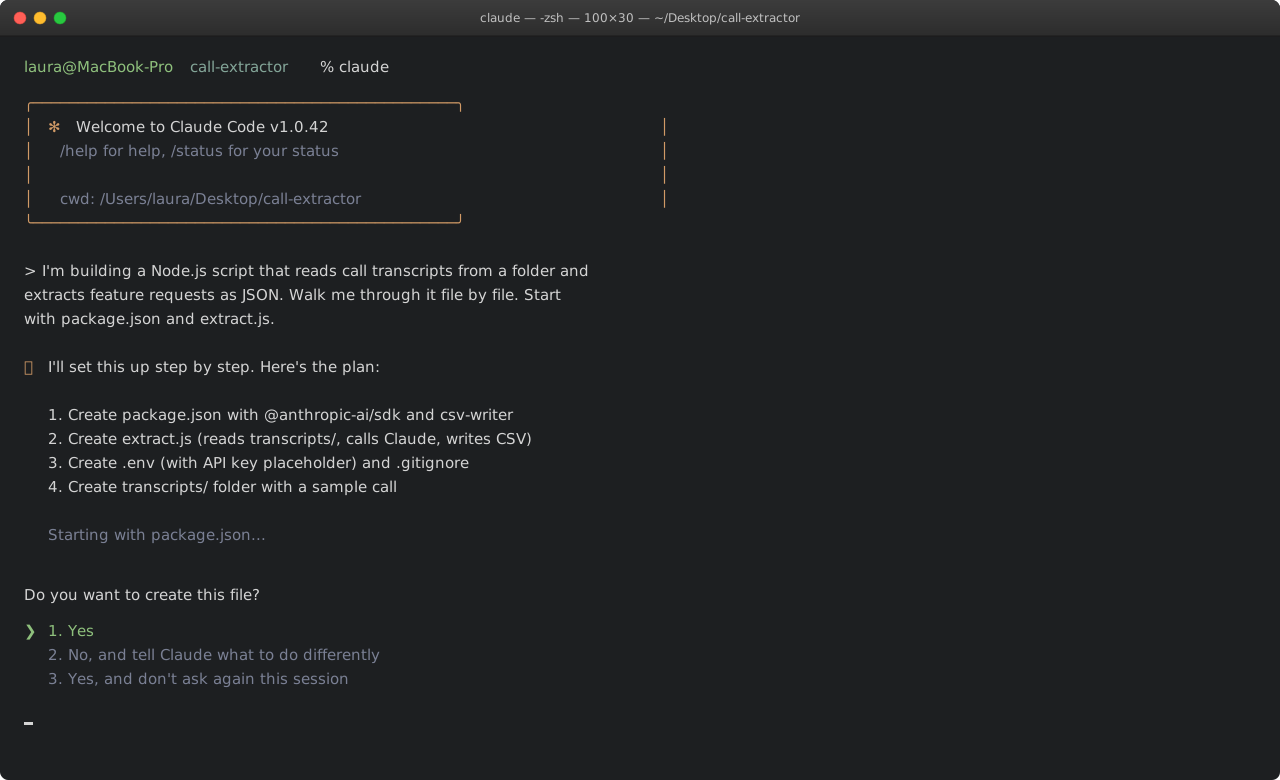 What a real Claude Code session looks like in your Terminal. The exact wording will vary, but the pattern is the same: you describe the goal, Claude proposes a plan, you approve each action with a number (1 = Yes).
Watch the files appear
After Claude Code finishes, you should see new files in your folder. Check via Terminal:
ls -a
You should see: extract.js, package.json, .env, .gitignore, README.md, transcripts/.
Or, if you set up VS Code earlier, switch to it and open this folder. The file tree on the left shows everything Claude Code just created.
What if Claude Code wants to do something different from what I described?
It might. Claude Code is non-deterministic, same prompt, different runs, slightly different output. That’s okay. As long as the general shape is right (one main script, a package.json, an env file, a transcripts folder), you’re fine.
If something is wildly wrong, say it wants to set up Python instead of Node, or build a totally different feature, just tell it: “Wait, this isn’t what I wanted. Let me clarify: [your clarification]. Please redo the plan.” You won’t break anything.
Run your first extraction (10 minutes)
Now the moment of truth.
Put the API key in .env
In VS Code (or any text editor), open .env. You’ll see something like:
ANTHROPIC_API_KEY=your-key-here
Replace your-key-here with the actual key you copied earlier (starts with sk-ant-). Save the file.
Triple-check the
.envfile is in your.gitignore. Open.gitignoreand confirm.envis listed there. If it’s not, add it and save. This prevents you from accidentally publishing your API key.
Install dependencies
In Terminal (you can step out of the Claude Code session, Ctrl+C, for a moment if you’d like, or open a new terminal tab):
npm install
You’ll see a stream of installation messages. After 30 seconds or so, it’ll finish. You now have the libraries the script needs.
Add a real transcript
Open transcripts/sample-call.txt and paste the ABC Elementary transcript from the 101 page. Save.
Run the script
In Terminal:
node extract.js
If everything went well, you’ll see:
Reading transcripts/sample-call.txt...
Calling Claude...
Extracted 4 items.
Saved features.csv ✓
Open features.csv (double-click it in Finder to open in Excel/Numbers/Google Sheets).
You should see a spreadsheet with four rows, the three feature requests and the bug from the principal’s call. Each one labeled, categorized, with the verbatim quote.
You just built a tool.
From the build: This is the moment in the Call Intelligence build where I realized this was actually going to work. I dropped two months of LiveSchool support emails into the folder, ran the script overnight, and woke up to thousands of rows of customer asks, including ones we’d already logged in Canny, but also a long tail of asks that had been mentioned on calls or in emails and never made it into a ticket. That missing tail was the thing I’d been chasing for two years. One night of code (well, Claude’s code) and there it was.
When something breaks
It will. Welcome to software.
The pattern for fixing things is the same as the pattern for building things: describe the problem to Claude Code in plain English, paste any error messages, ask for help.
Some common ones:
"Cannot find module '@anthropic-ai/sdk'"
You forgot to run npm install, or it failed. Run npm install again in Terminal. If it errors, jump back into Claude Code (claude in the same folder) and say: “I got this error when running npm install. Help me fix it.” Paste the full error.
"401 Unauthorized" or "Invalid API key"
Your API key is wrong, expired, or has a typo. Check your .env file:
- No quotes around the key
- No spaces around the
= - Key starts with
sk-ant- - File is named exactly
.env(with the dot, no.txtextension)
"The script ran but features.csv is empty"
Start a Claude Code session in the project folder (claude) and tell it: “My script ran without errors but features.csv is empty. Walk me through where the data goes and what might be wrong.” Claude Code can read your files and diagnose.
Generic strategy for any error
- Copy the exact error message
- Start a Claude Code session in your project folder (or continue an existing one)
- Tell it three things:
- What you were trying to do
- What you expected to happen
- What actually happened (paste the error)
- Claude Code will read the relevant files, diagnose, and propose a fix
- Approve the fix
- Try again
This is the entire debugging process. You’ll do it dozens of times. It gets faster.
Iterate (an hour or two)
Now the script works. Let’s make it better. Each of these is a new prompt in a Claude Code session, one at a time, see what changes, run the script, keep what you like.
Add real transcripts
Save a few of your own meeting notes, email threads, or calls as .txt files. Drop them in transcripts/. Run node extract.js again. The same script now works on your real data.
Pretty-print the console output
Tell Claude Code:
When the script finishes, also print a clean summary to the console: how many feature requests, bugs, and feedback items were found, grouped by category. Use simple text, no fancy tables.
You’ll have a quick at-a-glance view every time you run it.
Deduplicate
This is where it starts to feel like Call Intelligence:
If two items across different transcripts have similar summaries, group them together. Show the count of mentions in the CSV. Use simple string similarity, not another Claude call, we can upgrade that later.
You’ll see things like “Custom date ranges in reports (mentioned 7 times across 4 schools).” This is the seed of the real dedup system.
Filter
Add a command-line flag
--type=feature_requestso I can runnode extract.js --type=feature_requestand only see feature requests in the CSV. Same for bugs and feedback.
You’re learning command-line flags by example. No book required.
Save to Google Sheets
Instead of writing to a local CSV, write the results to a Google Sheet I own. Walk me through getting the API access set up.
Now your team can see the output in real time. (This is genuinely useful, many teams stop here. They never need the full 301.)
Each of these is a different way to dig deeper
What you’re doing in this section is learning by extension. You took a working thing. You asked for one more feature. You read what Claude Code wrote. You ran it. You noticed what changed. Repeat.
This is the single highest-leverage way to learn to build software. You’ll absorb dozens of patterns, how to read environment variables, how to parse command-line arguments, how to compare strings, without ever sitting down to “learn programming.” You learn it because you needed it for this thing you were building right now.
What you actually built
You have a real piece of software running on your laptop. It:
- Takes unstructured customer calls (or emails, or meetings, anything text)
- Uses Claude to extract structured insight from them
- Saves the results somewhere you can use (CSV, Google Sheets, etc.)
This is the core engine of Call Intelligence. Everything from here on is “make it run somewhere other than your laptop, for more people, on a schedule, with a nice UI.”
That’s 301.
Should you stop here?
Honestly? Maybe. Lots of teams ship internal tools that look exactly like what you just built and nothing more. A weekend script that produces a spreadsheet is sometimes the right answer. Don’t feel obligated to keep going if this solves your problem.
You should go to 301 if:
- You want other people to be able to use the tool (not just you running it on your laptop)
- You want it to run automatically, say, every morning at 6am
- You want the data in a real database so you can build a dashboard on top of it
- You’re curious how Call Intelligence is actually architected
If those don’t apply: you’ve done it. Use what you built. Come back later.
Go to 301 → See the Case Study →
Cheat sheet
For when you come back to this page later.
- Stack: Claude Code (the AI agent doing the building) + Node.js (runtime for your script) + Anthropic SDK (API client) +
.env(secret API key) + optionally VS Code (file browser) - Pattern: Read files → call Claude API → write structured output (CSV, JSON, Sheet)
- Debugging mantra: Paste error → describe context → approve fix → retry
- Mindset shift from 101: You’re no longer doing the work yourself. You’re directing an agent to do the work. Your job is to describe outcomes, read what Claude Code writes, and notice when something needs to change.